Author
DataApex
DataApex
Since 1991 DataApex develops and manufactures chromatography data stations. DataApex is constantly striving to provide users with efficient and up-to-date tools for chromatography data processing.
Tags
Article
Video
Software
Product
LinkedIn Logo

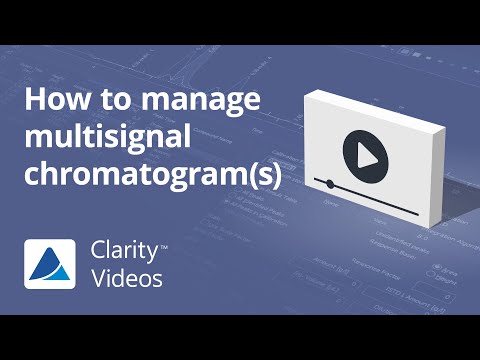
How to manage multisignal chromatogram(s) in Clarity Chromatography Software
Tu, 27.1.2026
| Original article from: DataApex
A practical guide to working with multi-signal chromatograms and overlay display in Clarity. Covers signal management, active signal handling, run comparison, and advanced graph customization.
Video placeholder
  • Photo: DataApex: How to manage multisignal chromatogram(s)
  • Video: DataApex: How to manage multisignal chromatogram(s)

Introduction

Clarity Chromatography Software from DataApex provides a comprehensive set of tools for working with multi-signal chromatograms and displaying multiple chromatograms simultaneously. The combination of intuitive mouse control, keyboard shortcuts, and flexible graph display options enables efficient signal management, clear identification of the active signal, and effective data comparison without loss of context, even when working with complex or densely overlaid chromatographic data.

Overview of Multi-Signal Chromatograms

A multi-signal chromatogram contains more than one detector signal recorded simultaneously (e.g., UV at different wavelengths, multiple channels of an electrochemical detector, or combined detector outputs).
Clarity provides tools to selectively display, hide, and evaluate these signals without losing context or data integrity.

Key objectives when working with multi-signal data include:

  • Maintaining a clear graphical view
  • Identifying the active signal
  • Efficiently switching between signals
  • Comparing data across multiple chromatograms

Opening Chromatograms and Selecting Signals

Signal Selection During File Opening

When opening a chromatogram file, Clarity allows users to pre-select which signals will be displayed:

  1. Open the Open Chromatogram dialog.
  2. Locate the Signals section.
  3. Check or uncheck individual signals before confirming the dialog.

Unchecked signals are automatically hidden upon opening. This approach is especially useful when working with datasets containing many detector channels, as it reduces initial visual clutter.

Showing and Hiding Signals After Opening

Toolbar-Based Signal Control

Once the chromatogram is open, signals can be shown or hidden dynamically:

  • Hold the Ctrl key and click on a signal icon in the toolbar.
  • The selected signal will toggle between visible and hidden states.

In multi-signal chromatograms, signal icons are visually connected by a line, indicating their logical grouping.

Important rule:
At least one signal must always remain visible. Clarity does not allow all signals to be hidden simultaneously.

Understanding the Active Signal

Definition and Purpose

The active signal is the signal currently being edited or evaluated. It determines:

  • Which peaks are integrated
  • Which results are displayed in tables
  • Which signal responds to user edits

Visual Indicators of the Active Signal

Clarity highlights the active signal in several consistent ways:

  • Toolbar: The signal icon is highlighted.
  • Legend: The active signal name appears in bold.
  • Graph: The signal trace is visually emphasized.
  • Results Table: Data corresponds exclusively to the active signal.

This multi-layered highlighting ensures the user always knows which signal is currently in focus, reducing the risk of accidental edits to the wrong dataset.

Overlay Mode: Opening Multiple Chromatograms

Purpose of Overlay Mode

Overlay mode allows multiple chromatograms to be displayed simultaneously in a single graph. This is essential for:

  • Method development
  • Batch comparison
  • Stability and repeatability studies
  • Sample-to-sample comparison

Opening Multiple Files

To activate overlay mode:

  1. Open the Open Chromatogram dialog.
  2. Select multiple chromatogram files by:
    • Holding Ctrl to select individual files, or
    • Holding Shift to select a continuous range.
  3. Confirm the selection to open all files together.

All selected chromatograms are displayed in the same graphical window.

Managing Chromatograms in Overlay Mode

Showing and Hiding Individual Chromatograms

In overlay mode, each chromatogram behaves similarly to a signal:

  • Hold Ctrl and click the chromatogram icon to hide or show it.
  • Hidden chromatograms appear only as an outline in the icon.
  • Alternatively, hold Ctrl and double-click the chromatogram name in the legend.

This functionality enables rapid decluttering of the display while preserving access to all loaded data.

Graph Properties for Advanced Customization

Accessing Graph Properties

For more advanced display control:

  1. Open Graph Properties.
  2. Navigate to the Signals tab.

Available Customization Options

Within this section, users can:

  • Adjust individual signal display settings
  • Assign specific colors to each signal
  • Enable graying out of inactive signals
  • Improve contrast and readability in dense overlays
  • Maintain clarity even at high zoom levels

These options are particularly valuable when working with:

  • High-density overlays
  • Multiple signals with similar retention times
  • Detailed peak inspection

Practical Benefits and Use Cases

By combining signal control, overlay mode, and graphical customization, Clarity enables:

  • Faster data interpretation
  • Reduced risk of signal confusion
  • Efficient comparison of chromatographic runs
  • Cleaner visual presentation for reporting and review

These features support both routine analytical workflows and advanced method development tasks.

Conclusion

Clarity provides a comprehensive set of tools for managing multi-signal chromatograms and multiple chromatograms within a single, coherent environment.
By selectively displaying signals, clearly identifying the active signal, leveraging overlay mode, and customizing graphical output, users can maintain full control over complex chromatographic datasets while keeping their workspace organized and interpretable.

This structured workflow enhances productivity, accuracy, and confidence during chromatographic data evaluation—making Clarity a powerful solution for modern analytical laboratories.

DataApex
LinkedIn Logo
 

Related content

Simultaneous Quantitation and Discovery analysis: Combining targeted and untargeted metabolomics on Orbitrap mass spectrometers

Applications
| 2026 | Thermo Fisher Scientific
Instrumentation
LC/MS, LC/MS/MS, LC/Orbitrap, LC/HRMS
Manufacturer
Thermo Fisher Scientific
Industries
Metabolomics

Analysis of Per- and Polyfluoroalkyl Substances (PFAS) in Wastewater

Applications
| 2026 | Agilent Technologies
Instrumentation
LC/MS, LC/MS/MS, LC/QQQ
Manufacturer
Agilent Technologies
Industries
Environmental

Non-Targeted Screening of Biosolids with the Xevo™ MRT Mass Spectrometer Reveals New Isoforms of PFAS

Applications
| 2026 | Waters
Instrumentation
LC/MS, LC/MS/MS, LC/TOF, LC/HRMS
Manufacturer
Waters
Industries
Environmental

High Resolution Characterization of Lipid Nanoparticles Using the Xevo™ Charge Detection Mass Spectrometry (CDMS) Instrument - Single Particle Mass Analysis of Intact LNP-mRNA Formulations

Applications
| 2026 | Waters
Instrumentation
LC/MS, LC/MS/MS, LC/HRMS, Particle characterization, LC/IT
Manufacturer
Waters
Industries
Lipidomics

Out-of-the-box workflow for PFAS quantitation using a fullscan high-resolution approach with the Orbitrap Exploris EFOX Mass Detector

Applications
| 2025 | Thermo Fisher Scientific
Instrumentation
LC/MS, LC/MS/MS, LC/Orbitrap, LC/HRMS
Manufacturer
Thermo Fisher Scientific
Industries
Environmental
 

Related articles

 How to open chromatograms from a sequence
Article | Product

How to open chromatograms from a sequence

Learn how to efficiently open and manage chromatograms from measured sequences in Clarity software using overlay mode or batch loading via the chromatogram window.
DataApex
tag
share
more
How to print a report from Sequence in Clarity software
Article | Product

How to print a report from Sequence in Clarity software

Learn how to configure Clarity Chromatography Software to automatically generate and print PDF reports after measurements using post-run settings.
DataApex
tag
share
more
A Complete Guide to the Calibration Window in Clarity Chromatography Software
Article | Video

A Complete Guide to the Calibration Window in Clarity Chromatography Software

A clear, structured guide to the Calibration Window in Clarity software. Learn how to navigate compounds, configure calibration levels, interpret curves, and optimize quantitative workflows.
DataApex
tag
share
more
Navigating and Zooming Chromatograms in Clarity Chromatography Software
Article | Video

Navigating and Zooming Chromatograms in Clarity Chromatography Software

Learn how to efficiently zoom, navigate, and stay oriented in Clarity Chromatography Software using mouse tools, keyboard shortcuts, and the Preview Graph for precise data inspection.
DataApex
tag
share
more
 

Related content

Simultaneous Quantitation and Discovery analysis: Combining targeted and untargeted metabolomics on Orbitrap mass spectrometers

Applications
| 2026 | Thermo Fisher Scientific
Instrumentation
LC/MS, LC/MS/MS, LC/Orbitrap, LC/HRMS
Manufacturer
Thermo Fisher Scientific
Industries
Metabolomics

Analysis of Per- and Polyfluoroalkyl Substances (PFAS) in Wastewater

Applications
| 2026 | Agilent Technologies
Instrumentation
LC/MS, LC/MS/MS, LC/QQQ
Manufacturer
Agilent Technologies
Industries
Environmental

Non-Targeted Screening of Biosolids with the Xevo™ MRT Mass Spectrometer Reveals New Isoforms of PFAS

Applications
| 2026 | Waters
Instrumentation
LC/MS, LC/MS/MS, LC/TOF, LC/HRMS
Manufacturer
Waters
Industries
Environmental

High Resolution Characterization of Lipid Nanoparticles Using the Xevo™ Charge Detection Mass Spectrometry (CDMS) Instrument - Single Particle Mass Analysis of Intact LNP-mRNA Formulations

Applications
| 2026 | Waters
Instrumentation
LC/MS, LC/MS/MS, LC/HRMS, Particle characterization, LC/IT
Manufacturer
Waters
Industries
Lipidomics

Out-of-the-box workflow for PFAS quantitation using a fullscan high-resolution approach with the Orbitrap Exploris EFOX Mass Detector

Applications
| 2025 | Thermo Fisher Scientific
Instrumentation
LC/MS, LC/MS/MS, LC/Orbitrap, LC/HRMS
Manufacturer
Thermo Fisher Scientific
Industries
Environmental
 

Related articles

 How to open chromatograms from a sequence
Article | Product

How to open chromatograms from a sequence

Learn how to efficiently open and manage chromatograms from measured sequences in Clarity software using overlay mode or batch loading via the chromatogram window.
DataApex
tag
share
more
How to print a report from Sequence in Clarity software
Article | Product

How to print a report from Sequence in Clarity software

Learn how to configure Clarity Chromatography Software to automatically generate and print PDF reports after measurements using post-run settings.
DataApex
tag
share
more
A Complete Guide to the Calibration Window in Clarity Chromatography Software
Article | Video

A Complete Guide to the Calibration Window in Clarity Chromatography Software

A clear, structured guide to the Calibration Window in Clarity software. Learn how to navigate compounds, configure calibration levels, interpret curves, and optimize quantitative workflows.
DataApex
tag
share
more
Navigating and Zooming Chromatograms in Clarity Chromatography Software
Article | Video

Navigating and Zooming Chromatograms in Clarity Chromatography Software

Learn how to efficiently zoom, navigate, and stay oriented in Clarity Chromatography Software using mouse tools, keyboard shortcuts, and the Preview Graph for precise data inspection.
DataApex
tag
share
more
 

Related content

Simultaneous Quantitation and Discovery analysis: Combining targeted and untargeted metabolomics on Orbitrap mass spectrometers

Applications
| 2026 | Thermo Fisher Scientific
Instrumentation
LC/MS, LC/MS/MS, LC/Orbitrap, LC/HRMS
Manufacturer
Thermo Fisher Scientific
Industries
Metabolomics

Analysis of Per- and Polyfluoroalkyl Substances (PFAS) in Wastewater

Applications
| 2026 | Agilent Technologies
Instrumentation
LC/MS, LC/MS/MS, LC/QQQ
Manufacturer
Agilent Technologies
Industries
Environmental

Non-Targeted Screening of Biosolids with the Xevo™ MRT Mass Spectrometer Reveals New Isoforms of PFAS

Applications
| 2026 | Waters
Instrumentation
LC/MS, LC/MS/MS, LC/TOF, LC/HRMS
Manufacturer
Waters
Industries
Environmental

High Resolution Characterization of Lipid Nanoparticles Using the Xevo™ Charge Detection Mass Spectrometry (CDMS) Instrument - Single Particle Mass Analysis of Intact LNP-mRNA Formulations

Applications
| 2026 | Waters
Instrumentation
LC/MS, LC/MS/MS, LC/HRMS, Particle characterization, LC/IT
Manufacturer
Waters
Industries
Lipidomics

Out-of-the-box workflow for PFAS quantitation using a fullscan high-resolution approach with the Orbitrap Exploris EFOX Mass Detector

Applications
| 2025 | Thermo Fisher Scientific
Instrumentation
LC/MS, LC/MS/MS, LC/Orbitrap, LC/HRMS
Manufacturer
Thermo Fisher Scientific
Industries
Environmental
 

Related articles

 How to open chromatograms from a sequence
Article | Product

How to open chromatograms from a sequence

Learn how to efficiently open and manage chromatograms from measured sequences in Clarity software using overlay mode or batch loading via the chromatogram window.
DataApex
tag
share
more
How to print a report from Sequence in Clarity software
Article | Product

How to print a report from Sequence in Clarity software

Learn how to configure Clarity Chromatography Software to automatically generate and print PDF reports after measurements using post-run settings.
DataApex
tag
share
more
A Complete Guide to the Calibration Window in Clarity Chromatography Software
Article | Video

A Complete Guide to the Calibration Window in Clarity Chromatography Software

A clear, structured guide to the Calibration Window in Clarity software. Learn how to navigate compounds, configure calibration levels, interpret curves, and optimize quantitative workflows.
DataApex
tag
share
more
Navigating and Zooming Chromatograms in Clarity Chromatography Software
Article | Video

Navigating and Zooming Chromatograms in Clarity Chromatography Software

Learn how to efficiently zoom, navigate, and stay oriented in Clarity Chromatography Software using mouse tools, keyboard shortcuts, and the Preview Graph for precise data inspection.
DataApex
tag
share
more
 

Related content

Simultaneous Quantitation and Discovery analysis: Combining targeted and untargeted metabolomics on Orbitrap mass spectrometers

Applications
| 2026 | Thermo Fisher Scientific
Instrumentation
LC/MS, LC/MS/MS, LC/Orbitrap, LC/HRMS
Manufacturer
Thermo Fisher Scientific
Industries
Metabolomics

Analysis of Per- and Polyfluoroalkyl Substances (PFAS) in Wastewater

Applications
| 2026 | Agilent Technologies
Instrumentation
LC/MS, LC/MS/MS, LC/QQQ
Manufacturer
Agilent Technologies
Industries
Environmental

Non-Targeted Screening of Biosolids with the Xevo™ MRT Mass Spectrometer Reveals New Isoforms of PFAS

Applications
| 2026 | Waters
Instrumentation
LC/MS, LC/MS/MS, LC/TOF, LC/HRMS
Manufacturer
Waters
Industries
Environmental

High Resolution Characterization of Lipid Nanoparticles Using the Xevo™ Charge Detection Mass Spectrometry (CDMS) Instrument - Single Particle Mass Analysis of Intact LNP-mRNA Formulations

Applications
| 2026 | Waters
Instrumentation
LC/MS, LC/MS/MS, LC/HRMS, Particle characterization, LC/IT
Manufacturer
Waters
Industries
Lipidomics

Out-of-the-box workflow for PFAS quantitation using a fullscan high-resolution approach with the Orbitrap Exploris EFOX Mass Detector

Applications
| 2025 | Thermo Fisher Scientific
Instrumentation
LC/MS, LC/MS/MS, LC/Orbitrap, LC/HRMS
Manufacturer
Thermo Fisher Scientific
Industries
Environmental
 

Related articles

 How to open chromatograms from a sequence
Article | Product

How to open chromatograms from a sequence

Learn how to efficiently open and manage chromatograms from measured sequences in Clarity software using overlay mode or batch loading via the chromatogram window.
DataApex
tag
share
more
How to print a report from Sequence in Clarity software
Article | Product

How to print a report from Sequence in Clarity software

Learn how to configure Clarity Chromatography Software to automatically generate and print PDF reports after measurements using post-run settings.
DataApex
tag
share
more
A Complete Guide to the Calibration Window in Clarity Chromatography Software
Article | Video

A Complete Guide to the Calibration Window in Clarity Chromatography Software

A clear, structured guide to the Calibration Window in Clarity software. Learn how to navigate compounds, configure calibration levels, interpret curves, and optimize quantitative workflows.
DataApex
tag
share
more
Navigating and Zooming Chromatograms in Clarity Chromatography Software
Article | Video

Navigating and Zooming Chromatograms in Clarity Chromatography Software

Learn how to efficiently zoom, navigate, and stay oriented in Clarity Chromatography Software using mouse tools, keyboard shortcuts, and the Preview Graph for precise data inspection.
DataApex
tag
share
more
Other projects
GCMS
ICPMS
Follow us
FacebookX (Twitter)LinkedInYouTube
More information
WebinarsAbout usContact usTerms of use
LabRulez s.r.o. All rights reserved. Content available under a CC BY-SA 4.0 Attribution-ShareAlike