

Data Processing Using Thermo Freestyle Software with NIST MSMS Search for Compound Identifications (“Nearby Precursors” Enhancement)
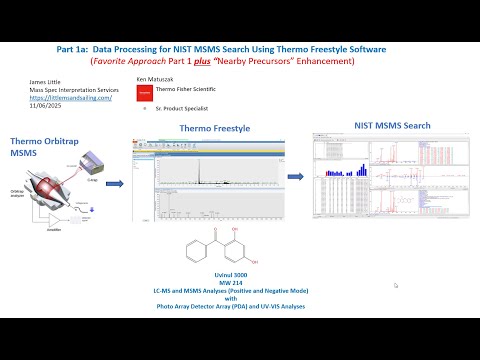
- Photo: James Little: Part 1A - Data Processing Using Thermo Freestyle Software with NIST MSMS Search for Compound Identifications (“Nearby Precursors” Enhancement)
- Video: James Little: Part 1A: Data Processing for NIST MSMS Search Using Thermo Freestyle Software (Favorite Approach Part 1 plus “Nearby Precursors” Enhancement)
This webinar series demonstrates the use of the Thermo Freestyle 1.8 SP2 QF1 software for processing LCMS product-ion mass spectra with the NIST 23 Mass Spectral Search Program (v.3.0). Spectra are easily exported from Freestyle to NIST Search for component identifications utilizing the NIST MSMS libraries and any other available user, crowd-sourced, and commercial MSMS libraries. Freestyle is a very convenient software package for processing data obtained with the their Orbitrap LCMS instruments. In one run both the MS1 and MS2 spectra are obtained in both positive and negative ion modes. The Diode arrary and UV channels can also be easily displayed for targeting the desired species noted in LC analyses.
Handout for whole series
- Part 1: My Favorite Processing Mode in Freestyle
- Part 1A: Using "Nearby Precursor" Enhanced Processing Mode in FreeStyle
- Part 2: Alternate Processing Modes in Freestyle
- Part 3: Setup of Basic Settings in Freestyle and NIST Search
- Part 4: Different NIST MSMS Searches Demonstrated
- Part 5: Elemental Processing within Thermo Freestyle
Part 1A: Data Processing Using Thermo Freestyle Software with NIST MSMS Search for Compound Identifications (“Nearby Precursors” Enhancement)
Equipment & Software
- Thermo Orbitrap MSMS
- Thermo Freestyle Software
- NIST MSMS Search
Mass spectrometry data processing is a critical step in analyzing complex chemical mixtures. This article focuses on a preferred method for processing data using Thermo Freestyle software, with an added enhancement—Nearby Precursors. This approach allows for efficient spectral analysis and identification of compounds, improving workflow efficiency and accuracy.
Step-by-Step Guide to Data Processing
1. Setting Up the Workspace
To streamline data analysis, follow these steps to configure the workspace in Thermo Freestyle:
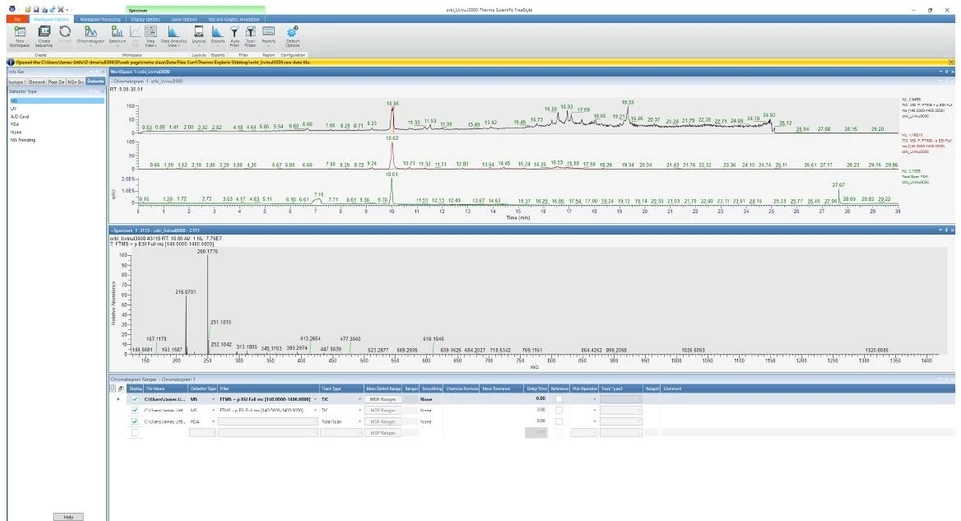
- Open three windows at the bottom of Freestyle:
- Top Window: Positive ion MS1
- Middle Window: Negative ion MS2
- Bottom Window: UV or PDA trace
- Save the layout using Workspace Options/Layouts to ensure automatic application when new files are opened.
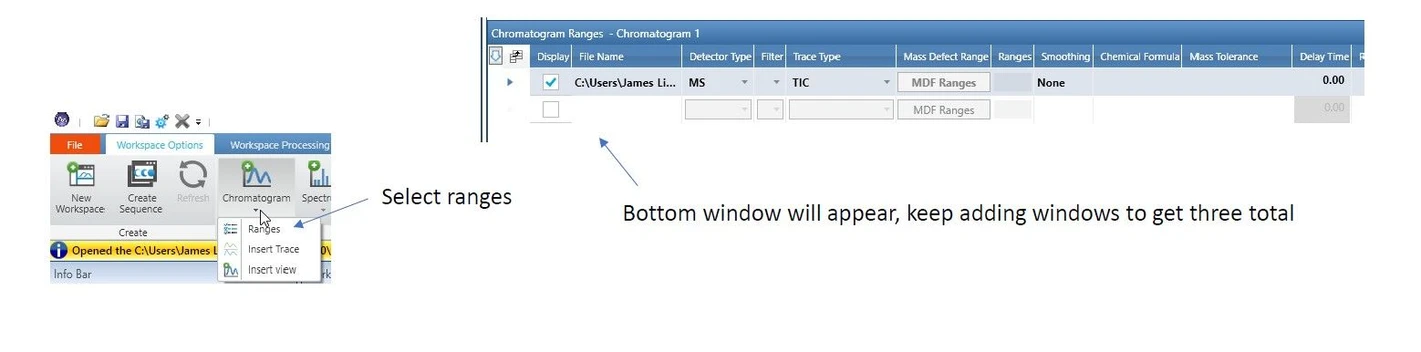 James Little: Part 1A - Setting Up the Workspace
2. Selecting Ranges and Filters
- Keep adding windows until you have three total.
- Use the filter function to configure:
- Positive ion in the top window
- Negative ion in the second window
- UV/PDA trace in the bottom window
- The positive and negative ion options are the last two items in the filter list.
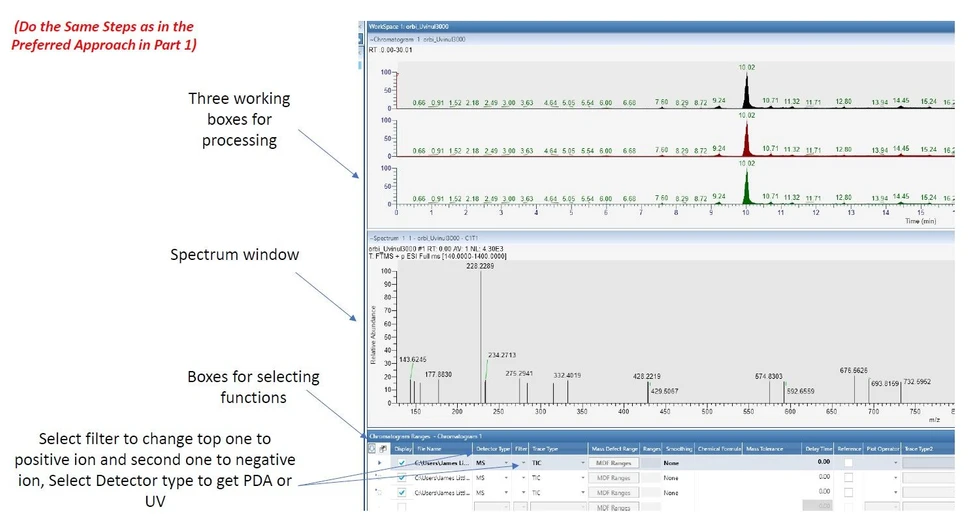 James Little: Part 1A - Selecting Ranges and Filters
3. Spectrum Window and Data Processing
Once the workspace is set up, it provides three working areas:
- Processing boxes to refine data selection
- Function selection boxes to choose necessary analyses
- Spectrum visualization for MS and MSMS data
Tip: Always save the layout so it automatically loads when opening new files.
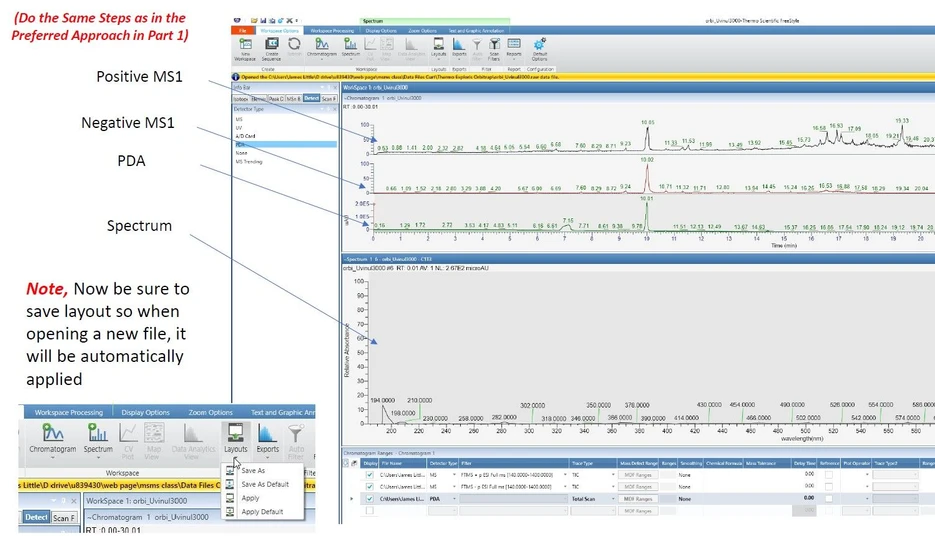 James Little: Part 1A - Spectrum Window and Data Processing
Enhancing Analysis with Nearby Precursors
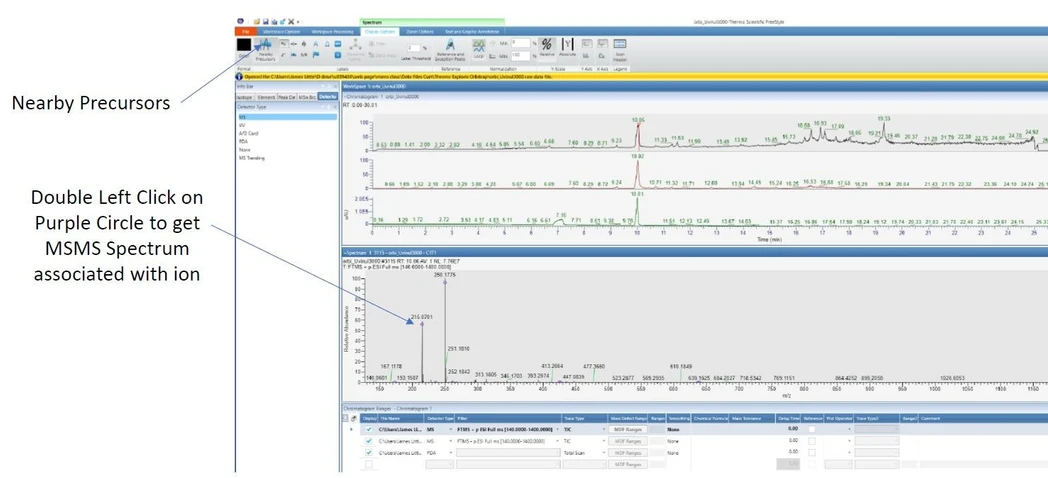
The Nearby Precursors feature allows users to quickly access and analyze MS2 spectra from associated peaks. Here’s how to use it effectively:
1. Selecting Peaks and Generating MS2 Spectra
- Left-click on a peak in either the positive or negative chromatogram (e.g., peak at 10.05 minutes).
- The corresponding MS2 spectrum will appear in the second window.
- Double left-click on the purple circle associated with the ion to display the MSMS spectrum.
Note: Nearby Precursors cannot be used with an averaged MS spectrum!
 James Little: Part 1A - Nearby Precursors Option
2. Sending Spectra to NIST MSMS Search
Once the MS2 spectrum is displayed:
- Select the bar above the spectrum with a left-click.
- Send the spectrum to NIST search for further identification.
- Remove unwanted spectra by clicking the ‘x’ in the box.
 James Little: Part 1A - Nearby Precursors Option - NIST MSMS
Troubleshooting: Recovering Deleted Spectra Windows
If all MS and MS2 spectrum windows are accidentally removed:
- Navigate to Workspace Options > Spectrum > Insert View.
- Reinsert the necessary spectrum windows to continue the analysis.
 James Little: Part 1A - If You Delete All the MS and MS2 Windows by Mistake
Conclusion
The Preferred Approach combined with the Nearby Precursors enhancement provides a streamlined and efficient way to process LC-MS and MSMS data using Thermo Freestyle software. This method ensures better spectral organization, easier peak selection, and faster searches in NIST MSMS databases.


